
Today's Dragon Tip
Print optionsYou can choose whether to include possibilities and a list of allocations made so far on the print report
Read More
Sudoku Square Marking [Page 6 of 14])
 <
<
 > Next
You'll often find that solving one or two squares in a Sudoku puzzle is crucial. It is useful to write notes about why a square must take a particular number or record allocations that can not be correct.
If you are used to using a pencil and eraser to solve puzzles you can use Sudoku Dragon in just the same way. To mark a possibility simply click on the square and press SHIFT key with the number you want to set. So SHIFT+4 puts a small 4 at the bottom of a square. If you press the CONTROL key instead of SHIFT (such as CTRL+4) marks it is an 'impossibility' and it is shown in reverse colors. To clear a mark just press the same key combination again. The marked possibilities are 'remembered' so you can use the Undo facility to go back and change them.
Any squares with an annotation are marked with a 'star' in the bottom left of the square. By double clicking on a square a details of particular numbers are shown as well as the text which you can then edit. If a square has an annotation, then when the mouse cursor is over the 'star', a tool-tip message pops up to show the note you have made for the square. You can change the note at any time. All the annotations can be printed out with the puzzle.
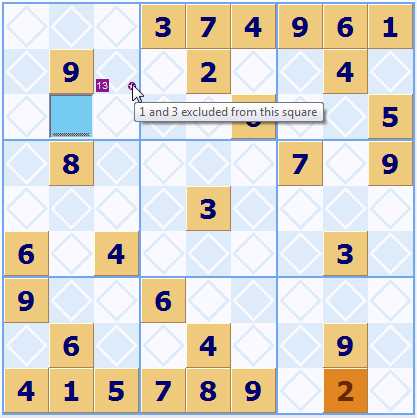
In this puzzle the highlighted square Bc has a star indicating a note has been added to it. The square has 1 and 3 marked as impossibilities and the reason this has been marked has been added as an annotation to the square.
 Give the SudokuDragon a free 23 day trial by visiting our download page.
It has all the features you need in a Sudoku puzzle solver.
- Tour Guide
- Generating a new Puzzle
- Square allocation list
- Sudoku puzzle types
- Puzzle solution hints
- Annotating squares
- Explaining possibilities
- Showing possible square assignments
- Possibility display control
- Automatically solve 'easy' squares
- Coloring squares
- Large Sudoku puzzles
- Improve your speed
- Puzzle display skins
Copyright © 2005-2026 Sudoku Dragon